Help & troubleshooting
Quick checks
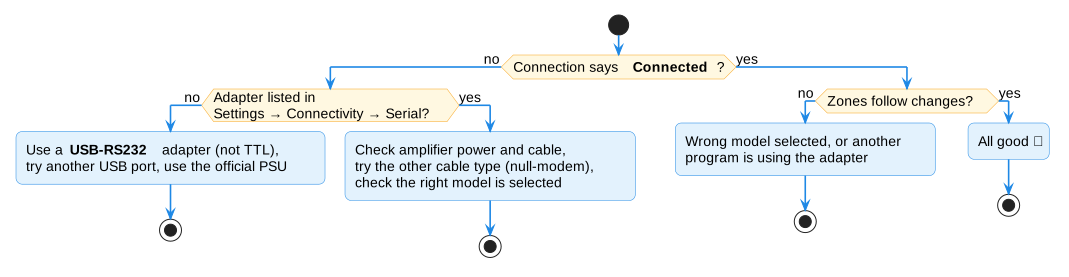
Most problems are one of these:
- Is the amplifier switched on?
- Is the cable pushed in firmly at both ends?
- Did you pick the right model in the Device list?
- Is it a USB-to-RS232 adapter (not "TTL")?
- Did you restart Home Assistant after installing Audio Control?
Common problems
Connection shows Disconnected
- Check the quick checks above.
- Try the other kind of cable: if you used straight-through, add a null-modem adapter (or the other way round). The AMC X86i needs straight-through.
- Unplug the USB adapter, plug it back in, and restart Home Assistant.
The adapter isn't listed
Go to Settings → Connectivity → Serial. If your adapter isn't there:
- Plug it into a different USB port on the Raspberry Pi.
- Make sure it's a USB-to-RS232 adapter. "USB-to-TTL" adapters show up differently and won't work.
- Cheap unbranded adapters sometimes don't work at all — an adapter with an FTDI chip is the safe choice.
- Running Home Assistant in Docker? See Docker / Container installs.
It worked, but stopped after a restart
You probably used /dev/ttyUSB0. That name can change when Home Assistant restarts.
Use the long /dev/serial/by-id/... name instead
(how).
Zones never change, or show the wrong state
- The wrong model may be selected — check the Device name on the amplifier's page.
- Another program may be using the adapter at the same time.
A button or control is missing (e.g. no bass)
That's on purpose: Audio Control only shows controls your amplifier really has.
"Zone is off" or "Tone level not supported"
The amplifier refused it. Turn the zone on first, or use one of the levels shown in the message.
The Raspberry Pi keeps losing its connection
Use the official power supply. A weak power supply causes random USB and Wi-Fi problems. An Ethernet cable is also more reliable than Wi-Fi.
Still stuck?
Open an issue on GitHub and include:
- Your amplifier model.
- The diagnostics file: go to the amplifier's page and click Download diagnostics. (Your connection details and passwords are removed automatically.)
-
If you can, a debug log:
How to turn on debug logging
Go to Settings → Devices & services → Audio Control → ⋮ → Enable debug logging, repeat the problem, then Disable debug logging — Home Assistant downloads the log file. Or add this to
configuration.yaml:logger: logs: custom_components.audio_control: debug